Great for cookbooks
"I bought All My Books and so did a friend of mine. We are both in love with it. We are cookbook collectors and keep many "books" in our computers using Mastercook recipe software. We point All My Books at our various files, it then goes and looks online for a match...we add info if that's called for right there on the info grabbed window...and store...and the beauty of that is: the program allows us to also store a link back to the "book" and set it to open that book when we click on the little book icon that the program has."
b adams
How to Import a Calibre Library into All My Books

Calibre is excellent at what it was built for: converting formats, sending books to a Kindle, and keeping ebook files in one library folder. A lot of people then try to stretch it into a home library catalog — paper books, loans, ISBN on the spine, a shelf you can browse — and that is where it starts to fight you.
All My Books 6.1 reads a Calibre library directly. You do not retype titles. You do not copy the EPUB/PDF tree into a new folder. The catalog is an index on top of the files Calibre already has.
Calibre vs All My Books: different jobs
Keep both if you convert formats. Switch the day-to-day catalog to All My Books if you also own paper books, lend copies, or do not want another program renaming files on disk.
| Task | Calibre | All My Books |
|---|---|---|
| Ebook file library + conversion (EPUB ↔ MOBI, send to device) | What it is for | Not a converter, but copies books to e-readers and phones over USB (Transfer books to device…, Ctrl+J). Opens files in the reader Windows already uses |
| Copies / renames files into its own library folder | Yes — that is the Calibre library | No. Files stay where they are |
| Printed books, ISBN, barcode / webcam scan | Not the focus | Title, ISBN, barcode scanner, webcam ISBN in 6.1 |
| Loans, shelf location, reading log | Custom columns if you build them | Built-in loan manager and location field |
| Audiobooks in the same catalog | Ebook-centric | Paper, ebook and audiobook cards together |
| Built-in ebook viewer / news downloads | Yes | No viewer on purpose — one click opens Calibre Viewer, SumatraPDF, Kindle…, or pick any installed reader from the Open with submenu |
| Import the other program’s library | — | Database → Import collection from → Calibre |
What the import actually copies
All My Books reads Calibre’s metadata.db (it lives in the Calibre library folder). The program does not need Calibre running.
Across come: titles, authors, publisher, series and number, tags (as subjects), language, ISBN, rating, comments, publication year, date added, covers,
Goodreads/Amazon links and the paths to the book files. Your custom columns come too: read / date read / my rating go to the matching fields, the rest become custom fields.
Each card links the file of the first format; all formats of the book are listed in the Binding field.
Left behind on purpose: conversion recipes, news feeds, virtual libraries, plugin data, the content server. Those stay in Calibre. Your Calibre library is not modified.
Step 1. Install All My Books 6.1
Download the current Windows build. If Calibre is already on the PC, All My Books offers the import once at first start and fills in the database path for you. You can always run it later from the menu. The import never touches the collection you have open: it creates a separate new database named after your Calibre library folder, so you can check the result before mixing it with books you added by hand.
Step 2. Point at metadata.db
- Menu: Database → Import collection from → Calibre…
- All My Books finds your current Calibre library by itself (the one Calibre opened last). To import a different library, hold Shift while clicking the menu item
and select its
metadata.db. The default on Windows is oftenC:\Users\<you>\Calibre Library\metadata.db. - Wait until the import finishes, then spot-check a few cards: cover, series, tags, and whether the ebook file opens.
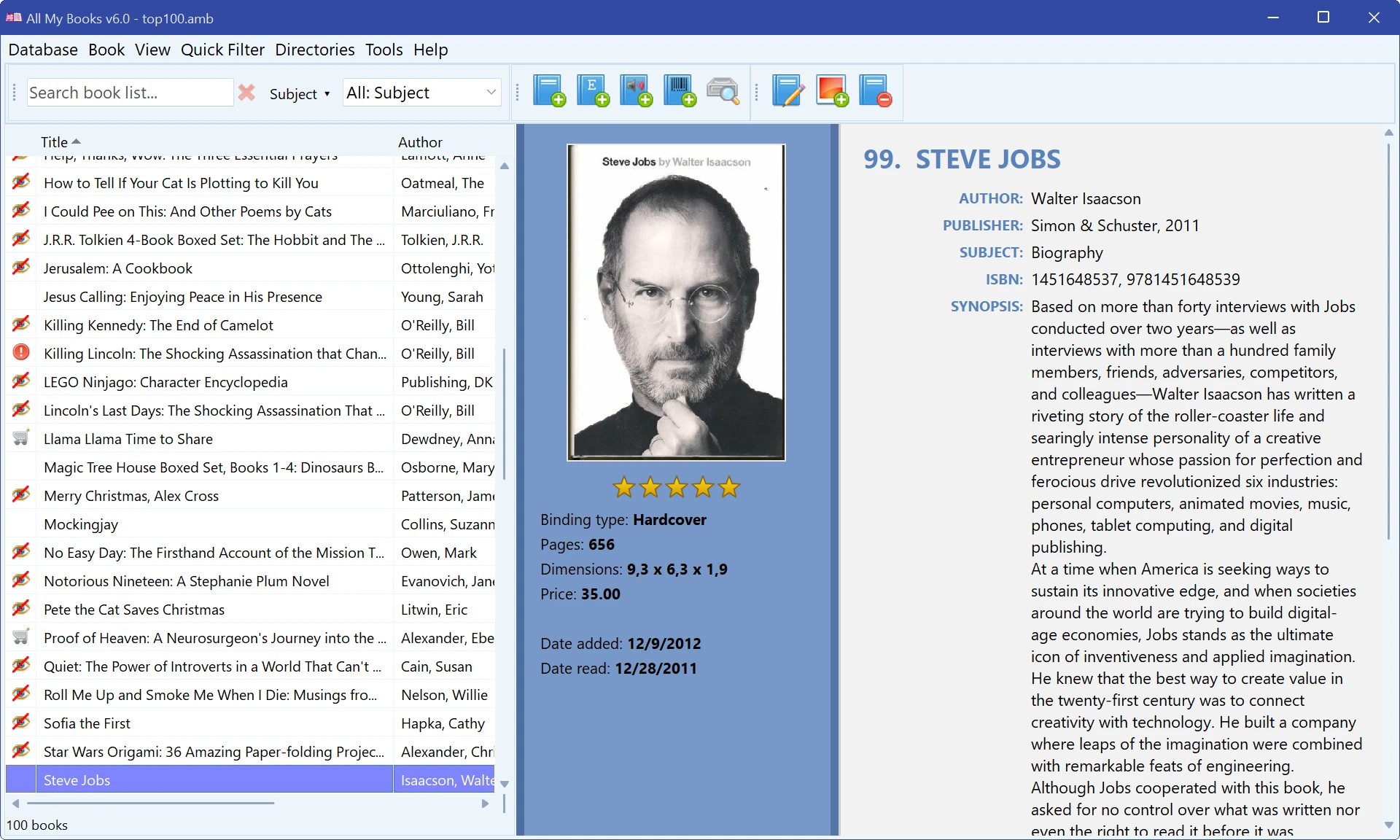
Step 3. Check file paths — do not delete the Calibre folder yet
After import, ebook files still sit in the Calibre library tree. All My Books stores the path; it does not copy the file. If you uninstall Calibre and wipe that folder, the links in the catalog break. Keep the library where it is, or copy the files somewhere permanent first, then update paths / rescan.
Prefer to catalog folders that were never inside Calibre? Skip import and scan ebook folders in place instead.
Step 4. Add what Calibre never tracked
- Paper books: Ins / Book → Add…, search by title or ISBN. 6.1 can also scan an ISBN with a webcam.
- Shelf location while the book is in your hand (living room / box B).
- Loans: mark a book as lent (F12); Tools → Loan history shows who still has it.
- Reading log and notes — see keeping track of books you read.
For a full paper-library walkthrough: how to catalog books at home.
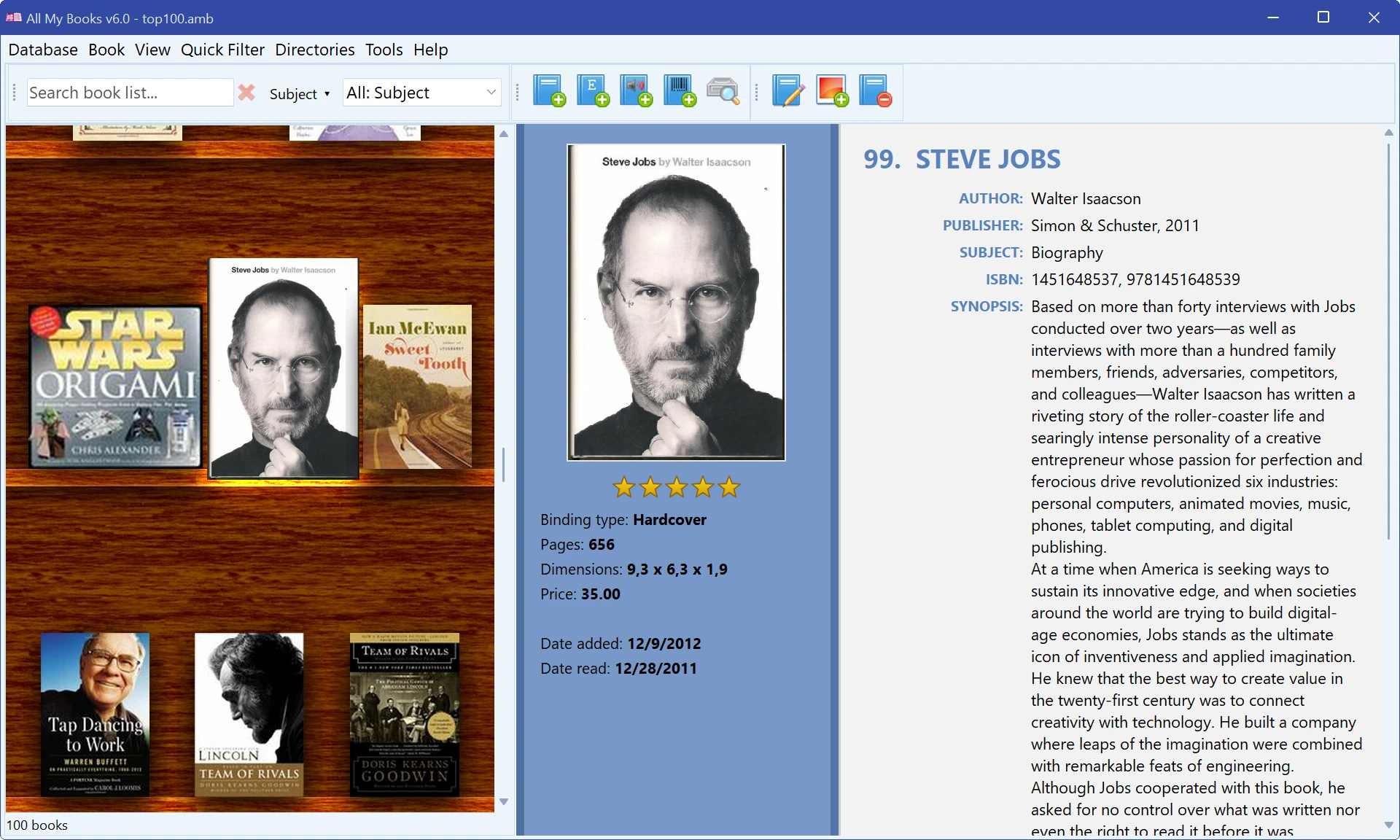
When to keep Calibre installed
Leave Calibre on the machine if you still need it for:
- Converting one format to another before sending to a Kindle or phone
- News / RSS to ebook
- The built-in viewer, if that is how you actually read
In All My Books, one click still opens the file in whatever reader Windows associates with that extension — including Calibre Viewer, if that is the association.
Quick FAQ
Will this change or empty my Calibre library?
No. Import is read-only on Calibre’s side. Calibre can stay installed.
I have several thousand books. Does the free mode fit?
The first 30 days have no limits at all. After that the free mode manages up to 100 books: a bigger collection stays viewable, searchable and exportable, and editing it needs a license.
Import the library to see that the cards look right, then license the program if the collection is larger. Details are on the
purchase page.
Do I need Calibre installed for the import?
No. You only need metadata.db (and the ebook files if you want to open them from the catalog).
What about duplicates if I already scanned folders in All My Books?
None: the import always creates a new database and leaves the open collection alone. To combine the two, open your main collection and use Database → Append from… (after the first 30 days this needs a license). Support can help with a messy overlap —
contact form.
Coming from Booknizer, Book Collector, Alfa…?
Same menu, different file. See Booknizer,
Book Collector,
Alfa eBooks Manager.
Try the import
Install All My Books 6.1, accept the Calibre prompt (or pick metadata.db yourself), open a few ebooks from the catalog, then add one paper book by ISBN.
If that is faster than maintaining two lists, you are done.
Already paid for another organizer? There is a 25% migrant discount.
What our customers say
Import Calibre’s
Requires All My Books 6.1 or later.
metadata.db into a Windows book catalog. Files stay on disk. Paper books and loans live in the same database.
Requires All My Books 6.1 or later.
Related guides
- How to organize ebooks
- How to catalog books
- Alfa eBooks Manager alternative
- Booknizer alternative
- Import help (all sources)
- Cataloging software hub
License Benefits:
- No 100-book limit
- Drive scan, Excel/CSV import and new databases after the first 30 days
- No reminder window, no trial banner
- Free updates and technical support
- The license key works instantly, no reinstall